

- Open Product Catalog → Features from the top navigation.
- At the top-right of the Features page, click Add to open Create Feature.
-
Fill in the feature details:
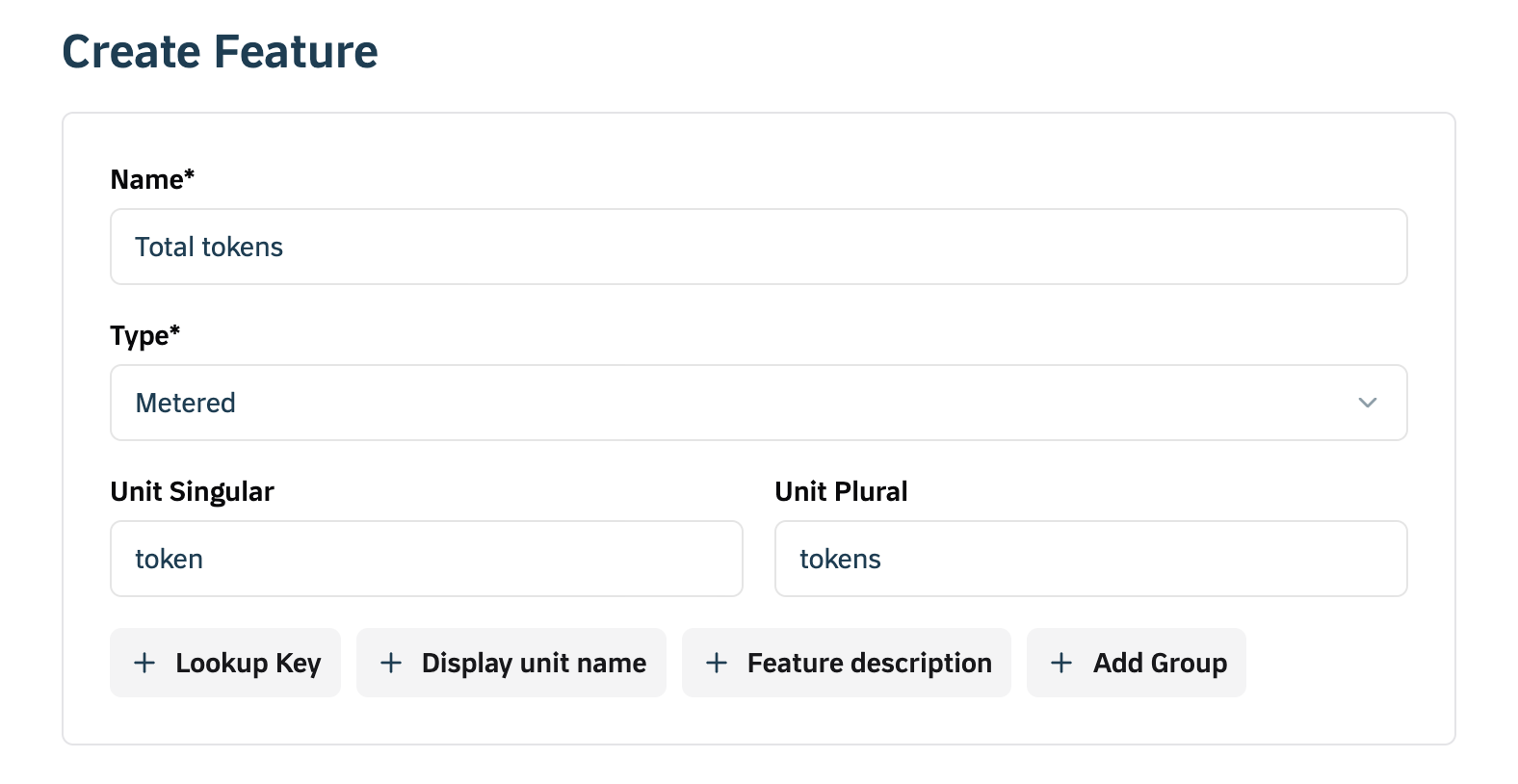
- Feature Name: Enter a unique and descriptive name for the feature (e.g., “Premium API Access”).
- Feature Type: Select the type of feature:
- Metered: Tracks quantifiable usage (e.g., number of API calls)
- Boolean: Indicates a simple on/off state (e.g., access to a premium dashboard)
- Static: Represents fixed attributes or entitlements (e.g., priority support)
- Config: Delivers a custom JSON configuration to your application through the customer’s entitlements (e.g., feature flags, rate limits, tenant settings)
How to create a Boolean feature
Select Boolean as Type which indicates a simple on/off state (e.g., access to a premium dashboard).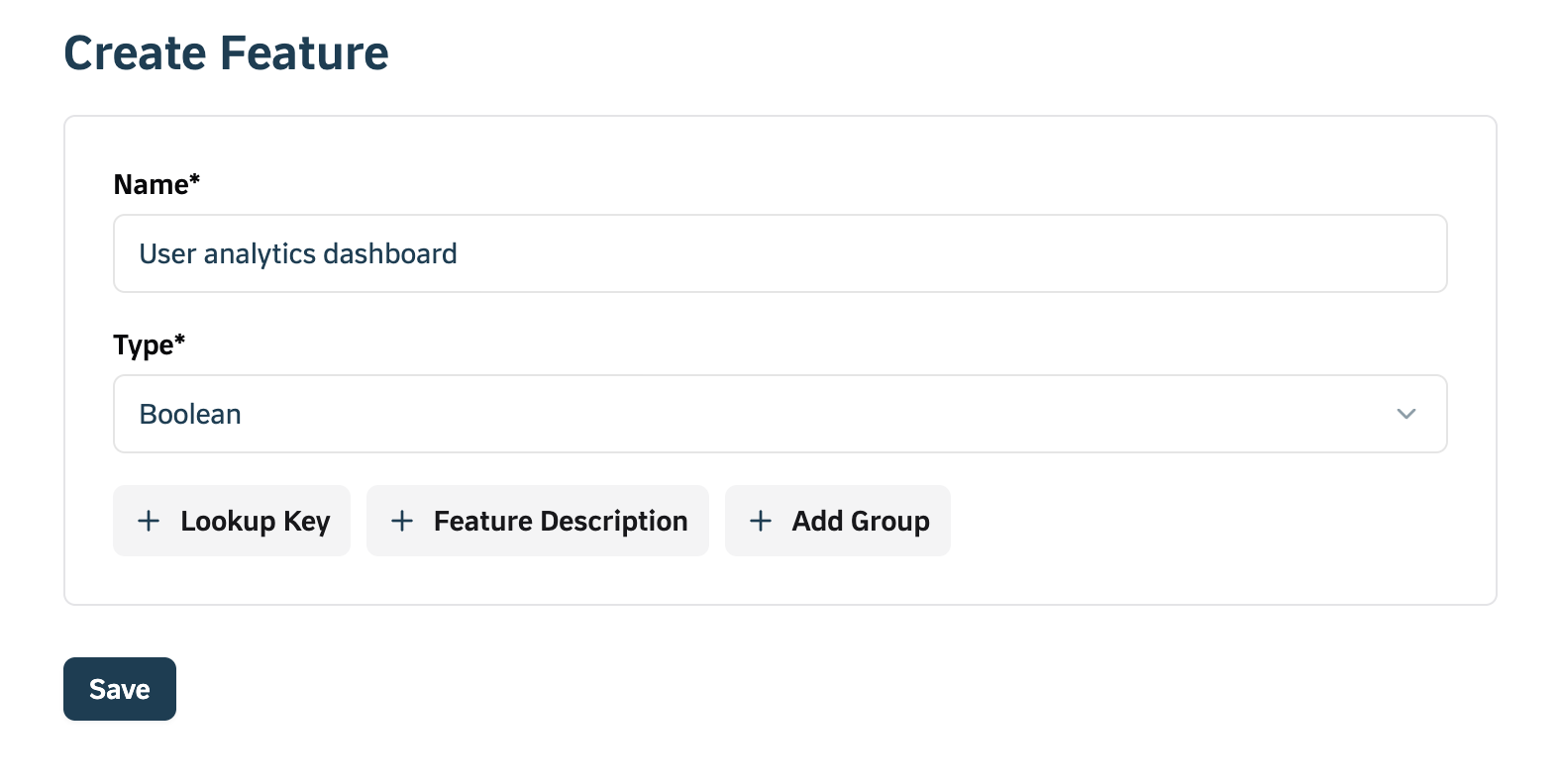
How to create a Static feature
Select Static as feature type which represents fixed attributes or entitlements (e.g., priority support)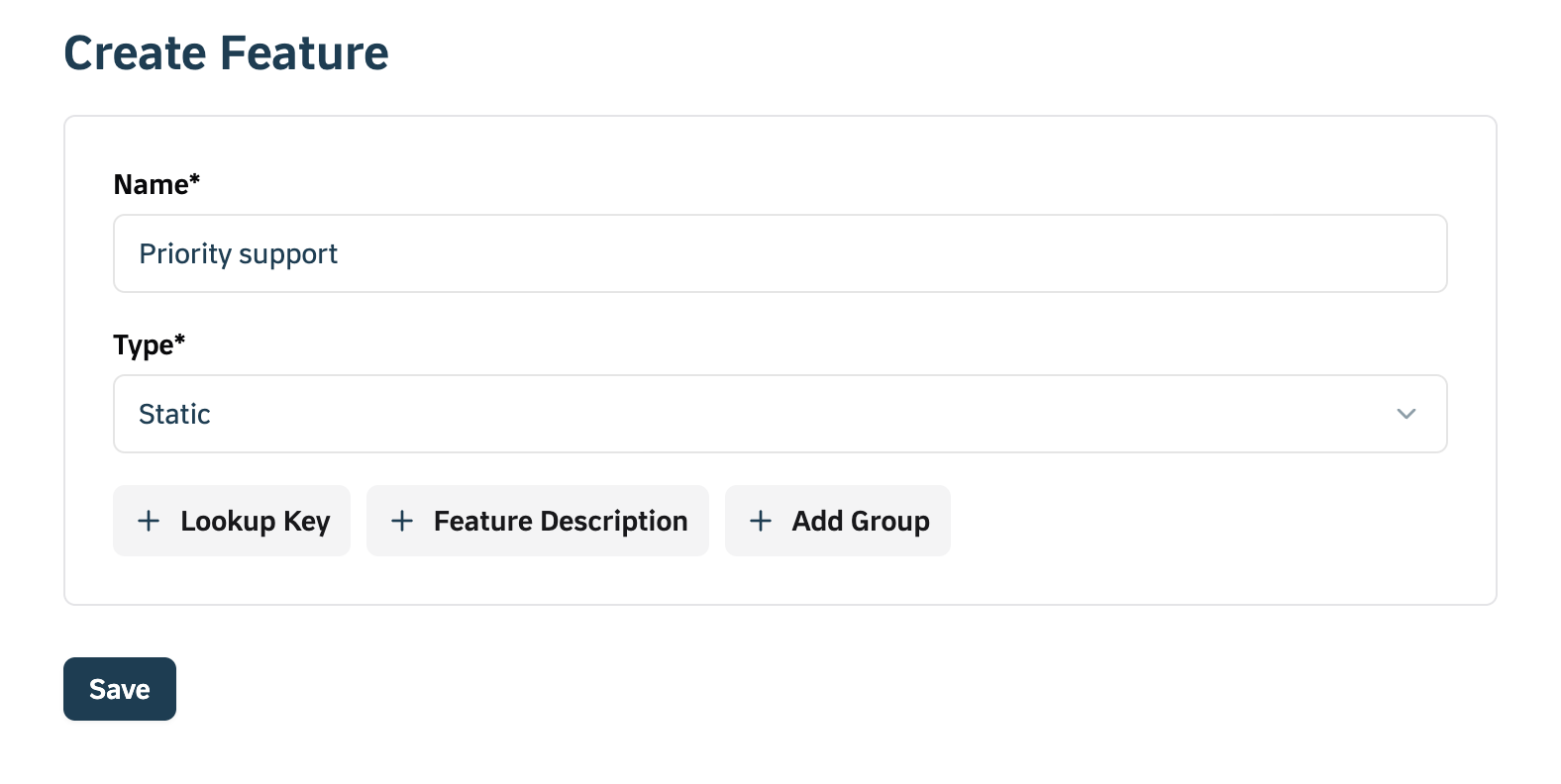
How to create a Config feature
A Config feature lets you attach a JSON object to an entitlement as aconfig_value. Tirdad stores and delivers this payload through plans and subscriptions, giving your application full control over how the configuration is applied.
1
Select Config as the feature type
In the Create Feature form, choose Config as the Type.
The
config_value is set at the entitlement level, not on the feature itself. You define it when attaching this feature to a plan.2
Add the feature to a plan
Navigate to the target plan, open the Entitlements tab, and select Add Entitlement. Choose the Config feature you created.A JSON editor appears. Enter a valid JSON object as the 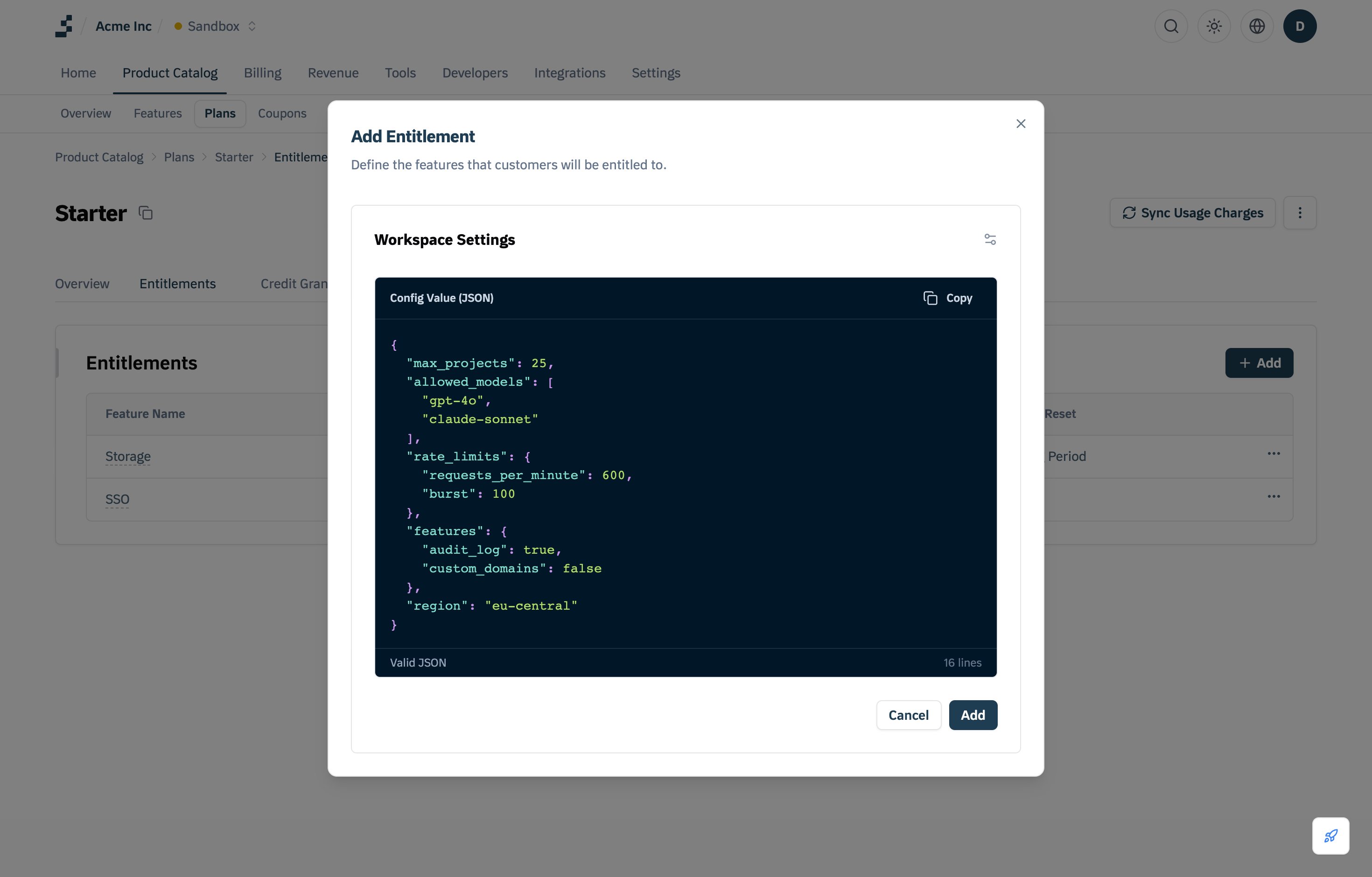
config_value. The editor validates the input and blocks submission if the value is not valid JSON.3
Save and verify
Click Add to save the entitlement. The plan’s Entitlements tab displays a truncated JSON preview in the Value column. Click the preview to open the full stored config payload.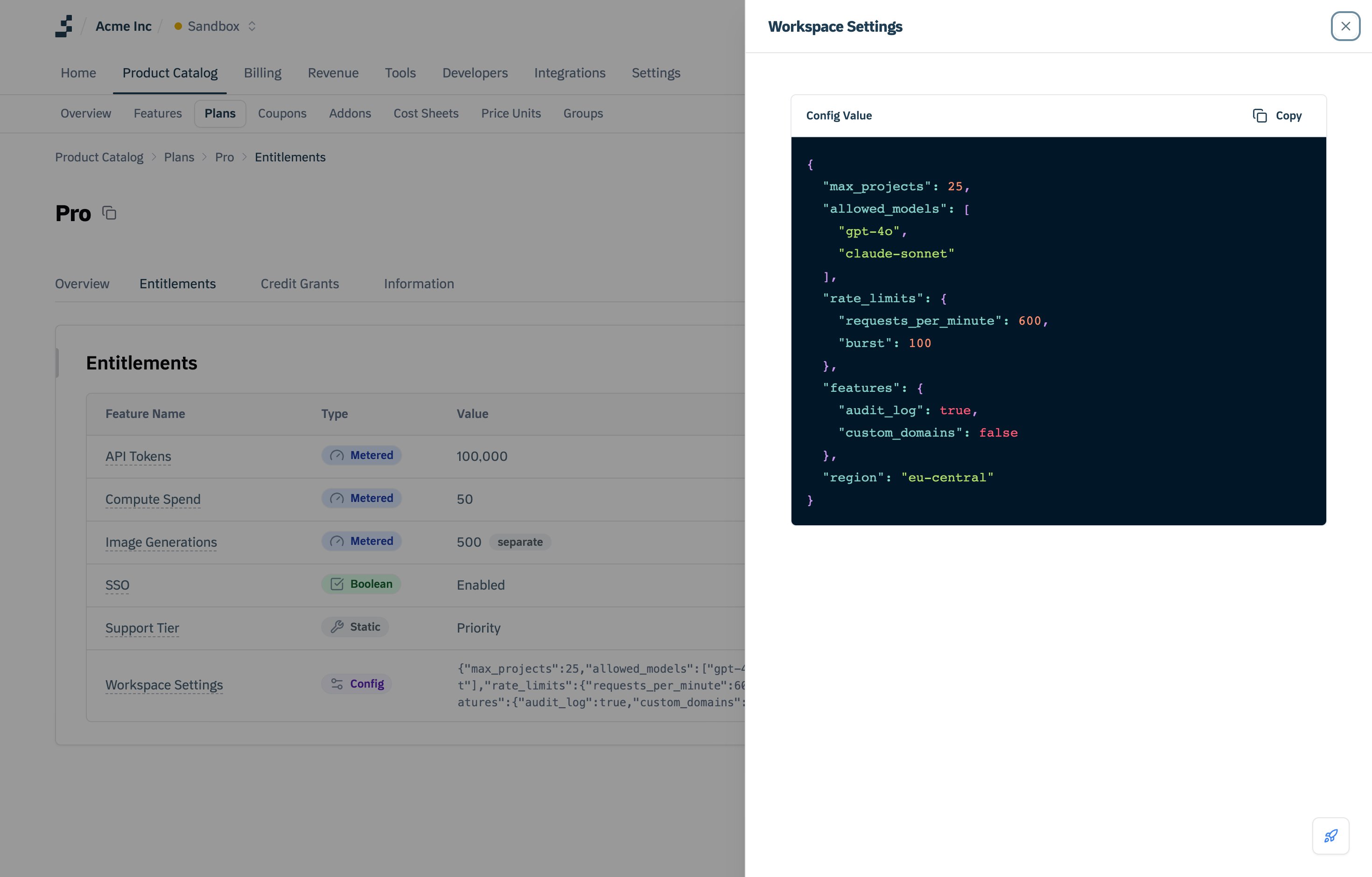
The
config_value is available on the customer’s entitlements as soon as they subscribe to a plan that includes this feature. Use the Get Customer Entitlements endpoint to retrieve it.How to create a Metered feature
- Select Metered as Type which tracks quantifiable usage (e.g., number of API calls).
- Optionally click + Unit Name and enter the singular and plural unit names, for example: “token” and “tokens”.
Define Event Details
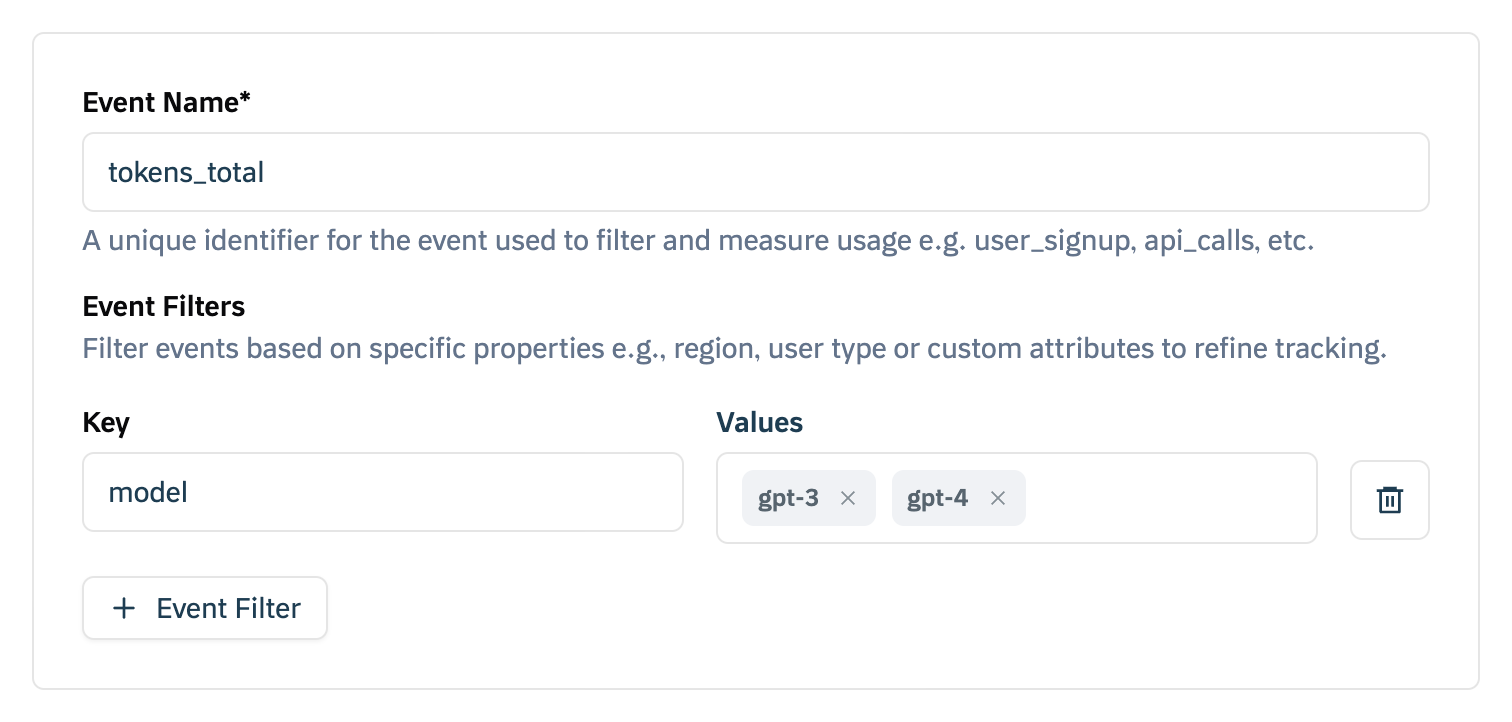
Event Name
For example, suppose you want to track how many tokens users consume while calling your AI model:- Event Name:
tokens_total- This is the unique identifier you’ll use to send events that match the metric
- Must be unique across your Tirdad account to avoid confusion with other metrics
Filters (Optional)
Click + Event filters to add them. It is important to note that filters cannot be edited later, so decide up front if you’ll need them for billing or reporting. Filters let you narrow down which events get counted or summed in this metric. You do not have to add filters if you want to aggregate all events of a given type. However, filters become crucial if you need more granular control, such as billing for only certain AI models or distinguishing usage by environment. Example: If your system supports multiple AI models (gpt 3, llama3.2, gpt 4), and you only want to track usage from GPT models for specialized billing, you can add a filter:
- Key:
model - Values:
gpt 3,gpt 4
model is either gpt 3 or gpt 4.
Define Aggregation
The aggregation settings tell Tirdad how to measure your events.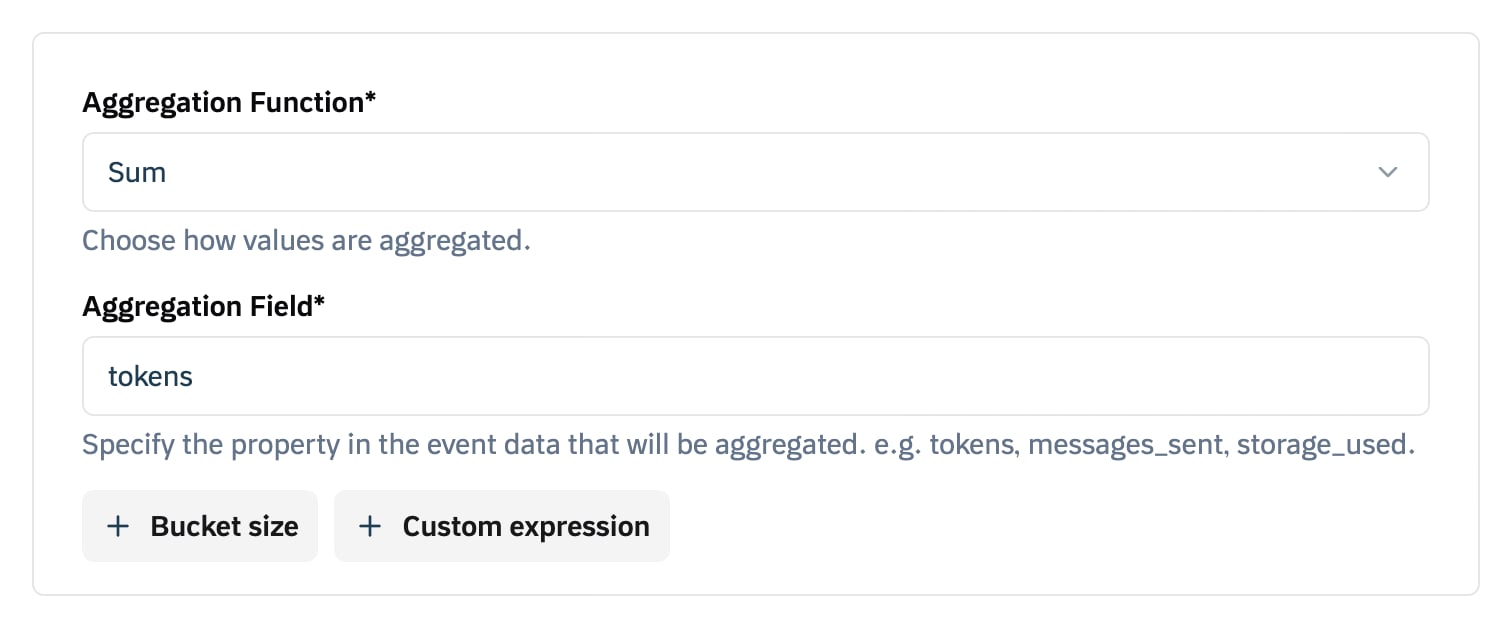
Function
Choose one of these aggregation functions (see Aggregation Overview for detailed explanations):- COUNT: Counts the total number of matching events, regardless of any numeric value in the event data
- SUM: Adds a numeric property (like tokens, price, etc.) across all matching events
- AVERAGE: Calculates the mean value of a specified property across all matching events
- COUNT UNIQUE: Counts only the unique values of a specified event property
- LATEST: Returns the most recent value of a specified property based on event timestamp
- SUM WITH MULTIPLIER: Sums a property and applies a configurable multiplier for rate conversions
- MAX: Returns the maximum value of a specified property (supports bucketed calculations)
- WEIGHTED SUM: Time-weighted sum for capacity-based billing where values are prorated by duration
Field
- The property that Tirdad aggregates. Required for all aggregation functions except
COUNT - For numeric aggregations (
SUM,AVERAGE,SUM WITH MULTIPLIER,MAX,WEIGHTED SUM): specify a numeric property (e.g.,tokens,gb,response_time) - For
COUNT UNIQUE: specify any property whose distinct values you want to count (e.g.,user_id,session_id) - For
LATEST: specify the property whose most recent value you want to track (e.g.,tier_level,status) - For
COUNT: no field required (counts event occurrences only)
Usage Reset
The Tirdad console creates every metered feature with a Periodic reset; it has no Usage Reset field. To create a Cumulative feature, use the API and set the meter’sreset_usage to NEVER.
- Cumulative: The meter never resets. Usage keeps accumulating across billing cycles, providing a running total. This is useful for features like storage.
- Periodic: Usage resets at each billing period (e.g., monthly). This is ideal for most subscription-based models where usage resets for every billing period
- Aggregation =
SUM - Aggregation Field =
tokens - Usage Reset =
Periodic(the console default: usage resets each billing period)