

Prerequisites
- Access to the Tirdad Admin Dashboard
- A clear understanding of what you want to meter (e.g., API calls, storage usage, credits consumed)
Step-by-Step Guide
1. Navigate to Features
- Log into your Tirdad Admin Dashboard
- In the top navigation, click Product Catalog
- Click on Features
- Click the + Add button
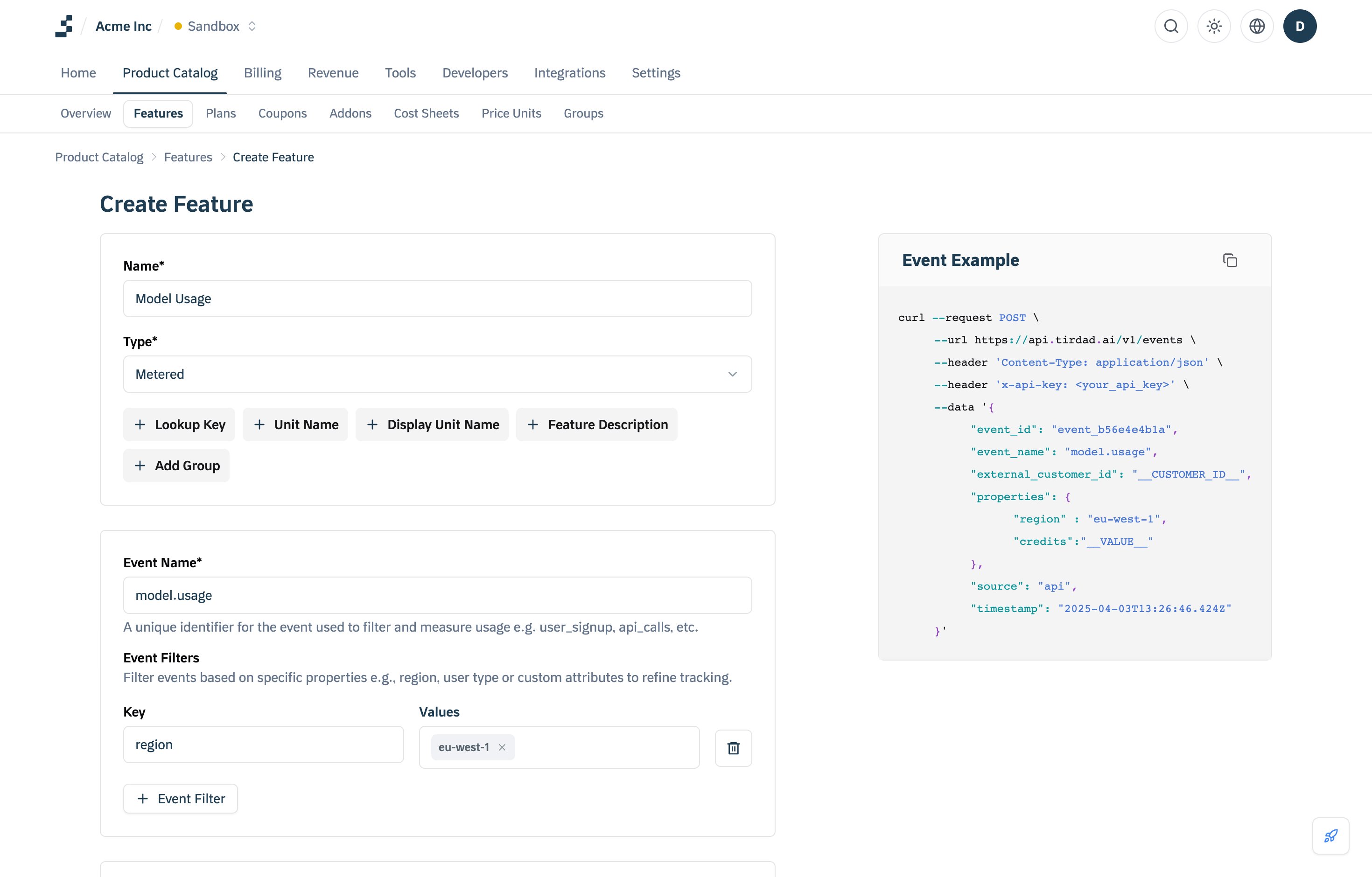
2. Basic Feature Information
Fill in the basic details:- Name: Give your feature a clear, descriptive name (e.g., “Model Usage”, “API Calls”, “Storage Usage”)
- Type: Select “Metered” from the dropdown
3. Configure Event Name
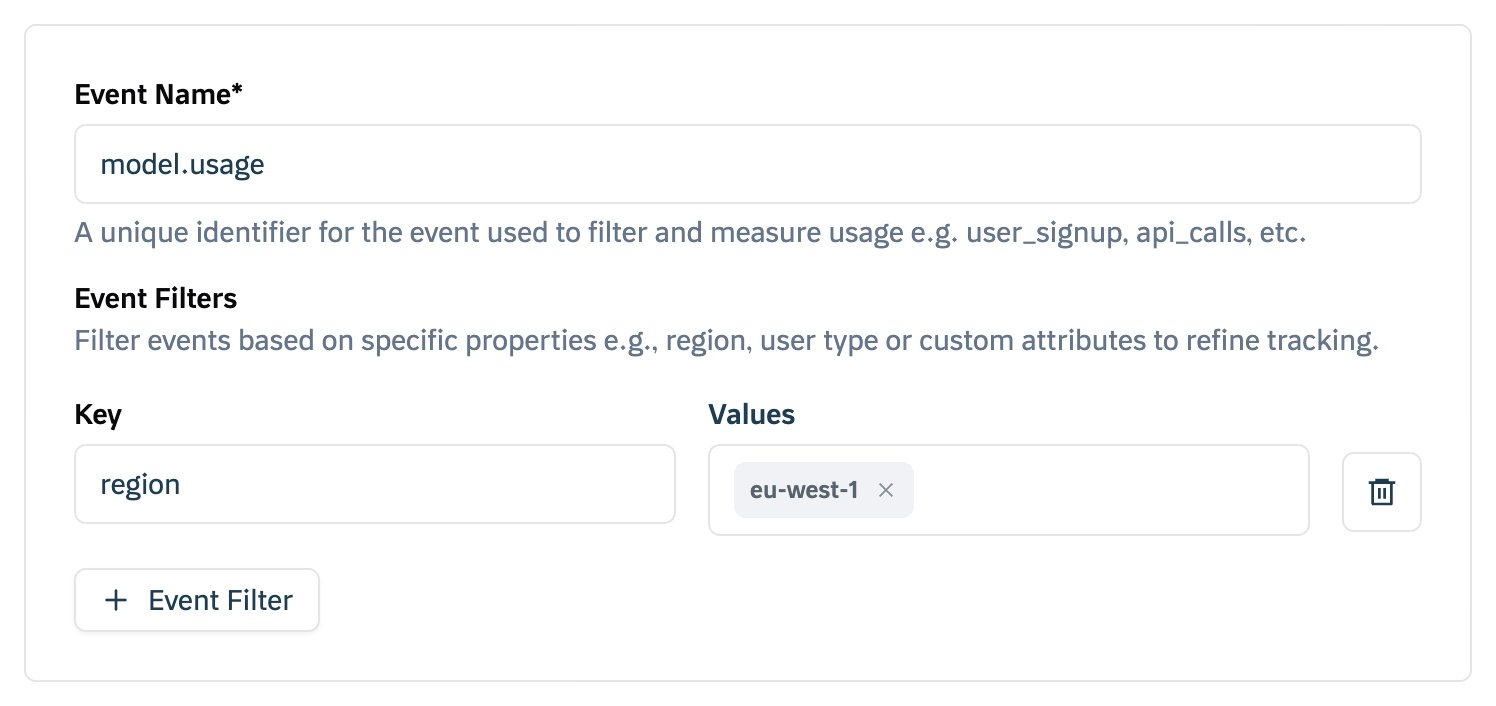
⚠️ CRITICAL: This is the most important setting The Event Name is the unique identifier that connects your events to this feature:- Must be unique across all features in your account
- Cannot be changed after creation
- Must match exactly what you send in your events
- Use lowercase with dots (e.g.,
model.usage,api.calls,storage.gb)
model.usage, every event you transmit must have "event_name": "model.usage".
4. Choose Aggregation Function
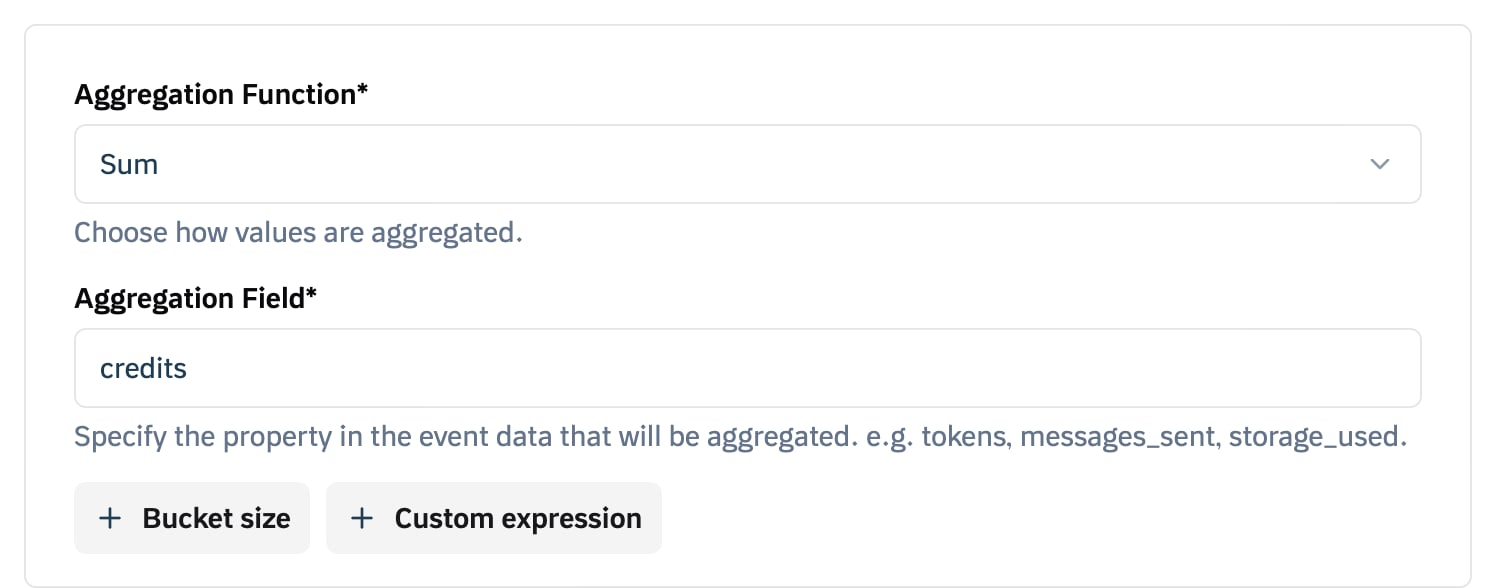
Select how you want to measure usage (see Aggregation Overview for detailed explanations):- Count — Counts the number of events (no property required)
- Sum — Adds up values from a specific property
- Average — Calculates the mean value of a specific property
- Count Unique — Counts unique values of a property
- Latest — Takes the most recent value sent
- Sum with Multiplier — Sums values and applies a rate multiplier
- Max — Takes the highest value seen in the billing period (supports bucketing)
- Weighted Sum — Time-weighted sum for capacity-based billing
5. Set Aggregation Field (if required)
⚠️ CRITICAL: This must match your event properties exactly If you selected Sum, Max, Latest, or Unique Count, you must specify which property to aggregate:- Field Name: The exact property key from your events
- Must match case:
credits≠Credits≠CREDITS - Must exist: Every event must include this property
credits, every event must include:
6. Configure Usage Reset
The dashboard creates metered features with Periodic usage reset; setreset_usage through the API to make a meter Cumulative. The two modes:
- Periodic — Usage resets at the start of each billing cycle
- Good for: API calls, monthly limits, recurring usage
- Example: Customer gets 1000 API calls per month
- Cumulative — Usage keeps growing across billing cycles
- Good for: Storage usage, lifetime metrics
- Example: Total storage used since account creation
7. Set Unit Name (Optional)
Click + Unit Name to define how the quantity appears on invoices:- Singular:
credit,API call,GB - Plural:
credits,API calls,GBs - Tirdad will automatically choose the correct form
credit / credits will show as “1 credit” or “5 credits” on invoices.
8. Add Event Filters (Optional)
If you only want to count certain events, click + Event filters and add filters:- Key: Property name to filter on
- Values: Allowed values for that property
region = "EU" or model = "gpt-4".
9. Save the Feature
Click Save to create your metered feature.After Creation
Once saved, you’ll see:- Feature ID: A unique identifier for this feature
- Event Name: The exact string to use in your events
- Aggregation Details: How the feature processes events
Common Configuration Examples
API Calls (Count)
- Event Name:
api.calls - Aggregation Function: Count
- Usage Reset: Periodic
- Unit Name:
API call / API calls
Credits Consumed (Sum)
- Event Name:
model.usage - Aggregation Function: Sum
- Aggregation Field:
credits - Usage Reset: Periodic
- Unit Name:
credit / credits
Storage Usage (Sum)
- Event Name:
storage.usage - Aggregation Function: Sum
- Aggregation Field:
gb - Usage Reset: Cumulative
- Unit Name:
GB
Peak Concurrent Users (Max)
- Event Name:
concurrent.users - Aggregation Function: Max
- Aggregation Field:
count - Usage Reset: Periodic
- Unit Name:
user / users
⚠️ Critical Warnings
Event Name
- Cannot be changed after creation
- Must be unique across all features
- Case sensitive —
api.calls≠API.calls
Aggregation Field
- Must match exactly the property name in your events
- Case sensitive —
credits≠Credits - Required for Sum, Max, Latest, and Unique Count functions
Testing
- Always test your feature configuration before transmitting production events
- Use the Event Debugger to validate your setup
Related Documentation
- Features Overview — Learn about different feature types
- Aggregation Functions — Understand how data is processed
Next Steps
Now that you have a metered feature, you’re ready to:- Send Events - Learn how to transmit usage data
- Validate Events - Ensure events are being processed correctly
- Connect to Billing - Set up pricing and subscriptions
Troubleshooting
”Events not showing up”
- Check that Event Name matches exactly
- Verify Aggregation Field exists in your event properties
- Ensure the customer exists with the correct
external_customer_id
”Wrong aggregation values”
- Verify Aggregation Field name matches your event properties
- Check that property values are the correct data type (numbers for Sum/Max)
- Confirm Usage Reset setting matches your expectations
”Cannot change Event Name”
- Event Name is immutable after creation
- Create a new feature with the correct name
- Update your application to transmit events with the new name