

- Fewer billing tickets - Customers answer their own questions about balances, invoices and usage
- Faster collection - An unpaid invoice carries a Pay now button instead of a support thread
- Uninterrupted service - Automatic top-ups refill a wallet before the balance runs out
- No card data on your side - Cards are collected and stored by the payment provider’s hosted page, never by Tirdad or by you
- Tenant-controlled surface - Each section is switched on or off per environment
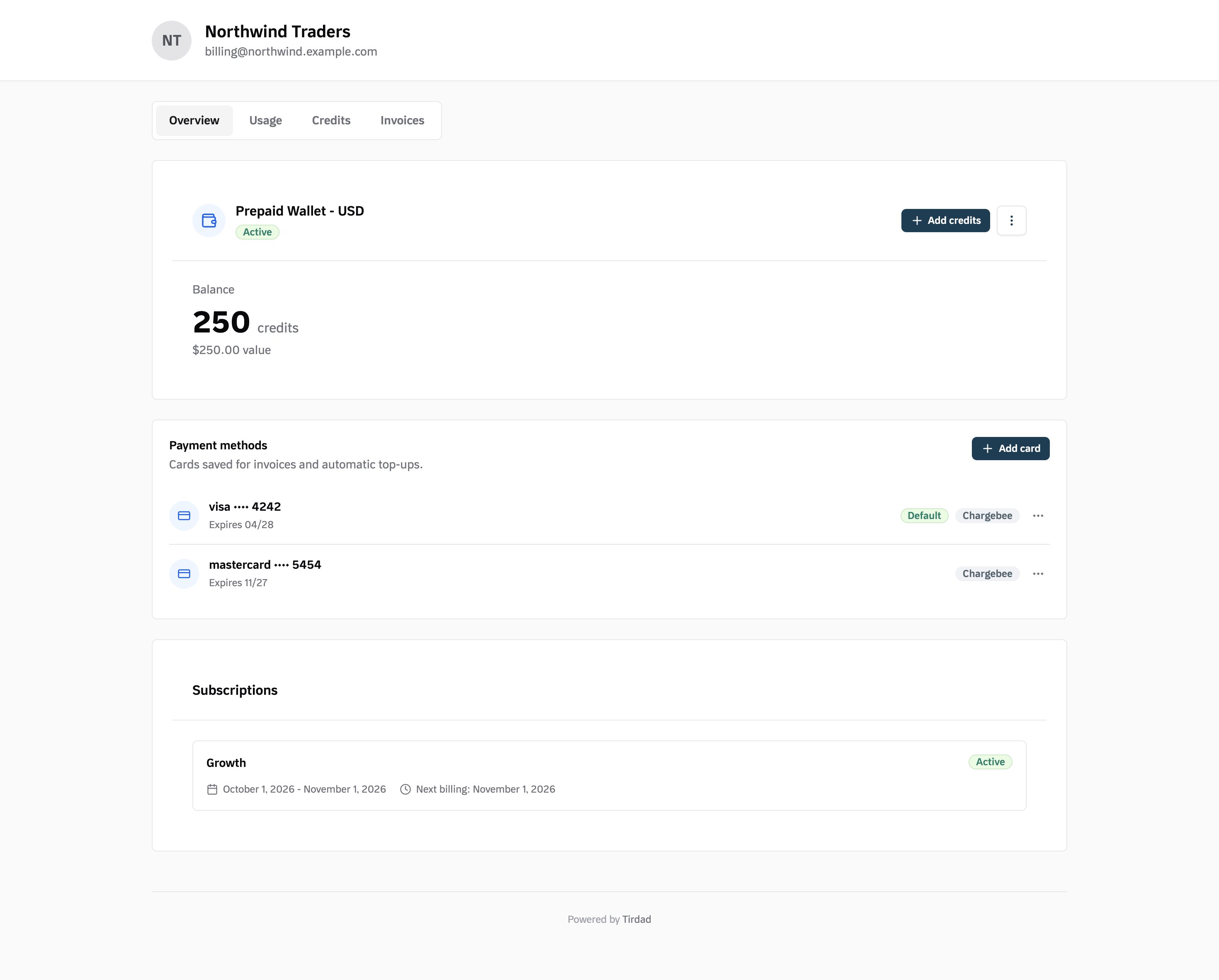
What customers can do
The portal is organised into sections shown as tabs across the top. Which sections appear is configurable; the defaults are below.
Actions available to a customer:
- View and download invoices with their status and line-item breakdown
- Pay an outstanding invoice through a hosted checkout page
- Top up a wallet by card, or by raising an invoice to settle later
- Configure auto top-up with a threshold, an amount and an optional cooloff
- Add, remove and set a default card through the provider’s hosted card form
- Track usage and cost per feature over a chosen date range
Session tokens expire after 1 hourThe portal reads a session token from the URL. Generate a fresh session each time a customer needs access rather than storing the token.
Generating a portal session
To give a customer access, generate a session token from your backend using your API key. The token names one customer and carries the tenant and environment, so it grants access to that customer’s data only. Endpoint:GET /v1/customers/portal/{external_id}
Authentication: your Tirdad API key in the x-api-key header
Path parameters:
Example request
Response
Redirecting a customer
Send the customer to theurl field. The portal reads the token from the query string and authenticates on load.
Handling expiry
Readexpires_at and generate a new session when the token has passed it:
Embedding the portal
The portal renders inside an iframe:Hosted checkout pages open in a new browser tab, not inside the iframe. Payment providers block being framed. The portal handles the hand-off and the return automatically, described in Portal payments.
Opening the portal from the dashboard
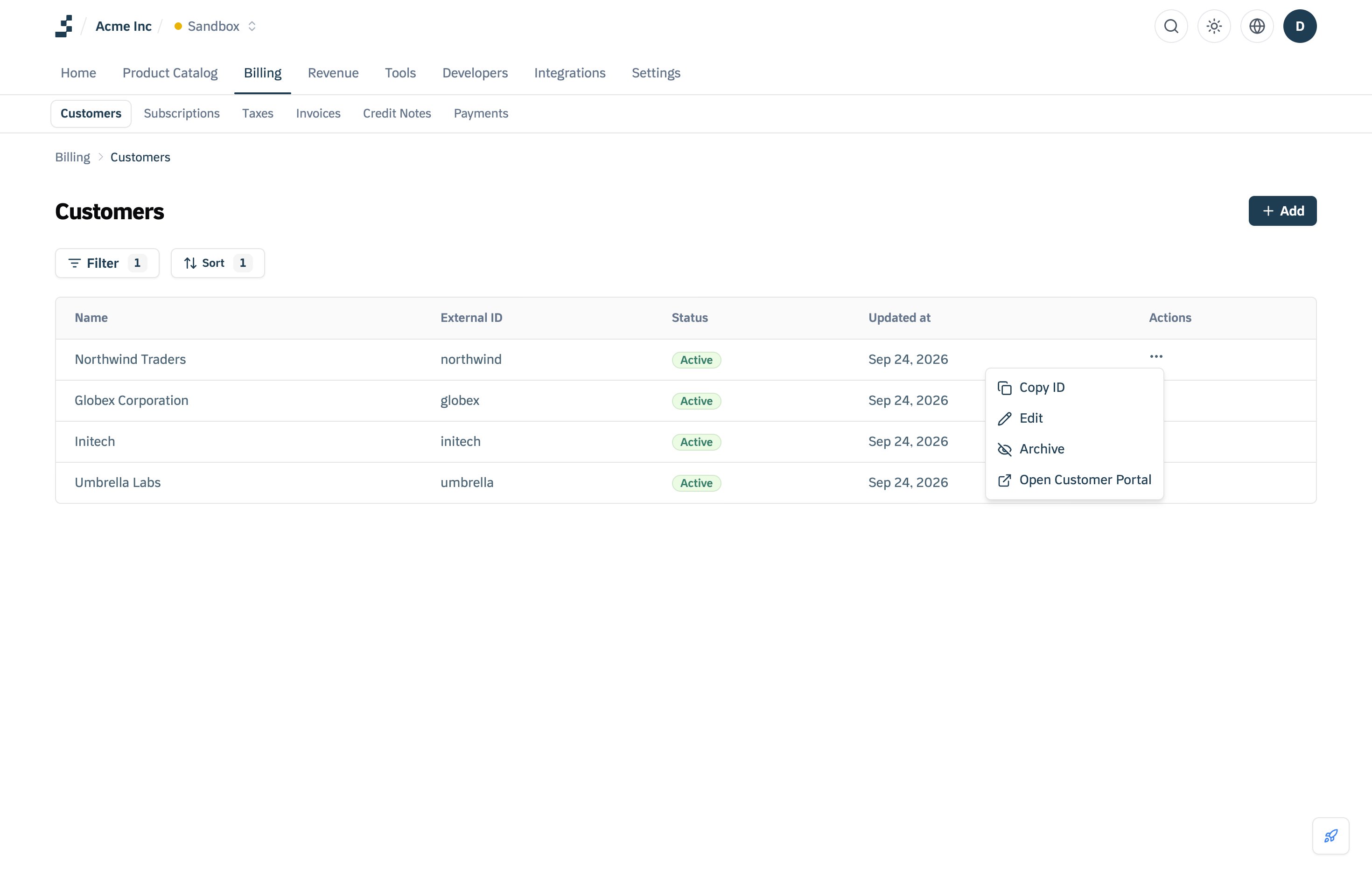
You can open a customer’s portal from the Tirdad dashboard without writing any code.From the Customers page
- Open Billing → Customers from the top navigation
- Find the customer in the table
- Click the three-dot menu at the end of the row
- Select Open Customer Portal
From the customer details page
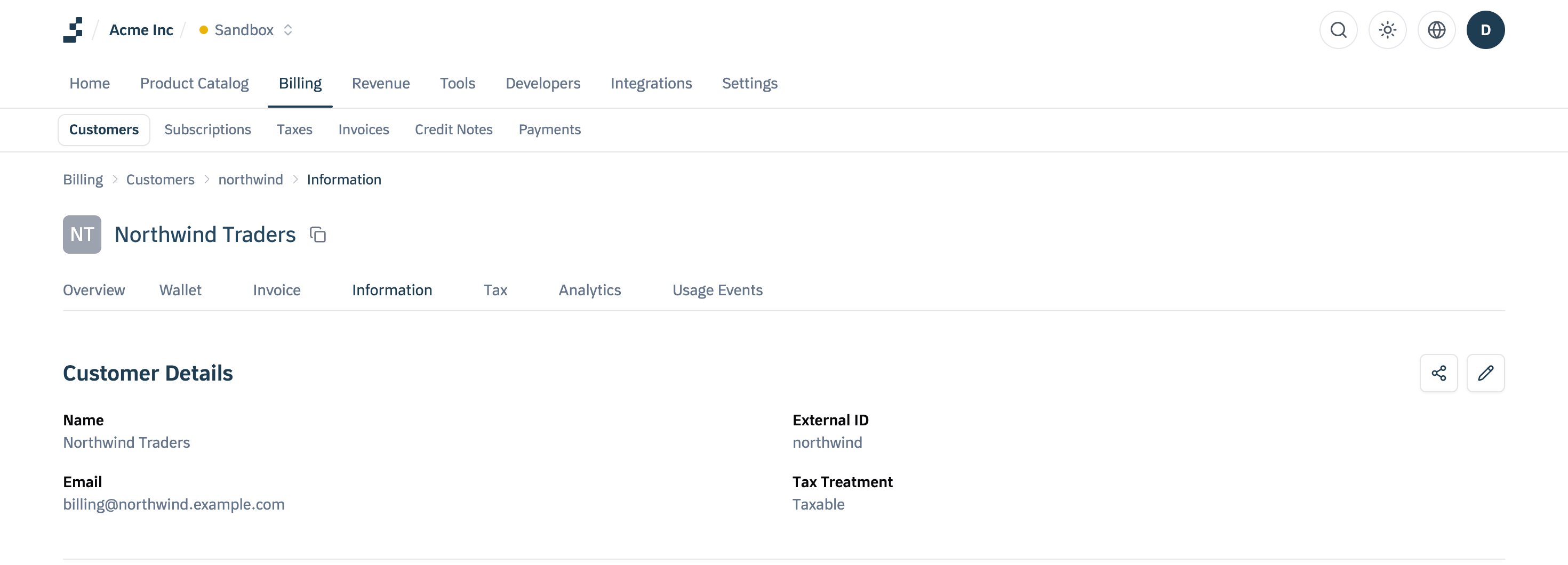
- Open Billing → Customers and click a customer
- Open the Information tab
- In the Customer Details section, click the share icon to copy the portal link
Section reference
Overview
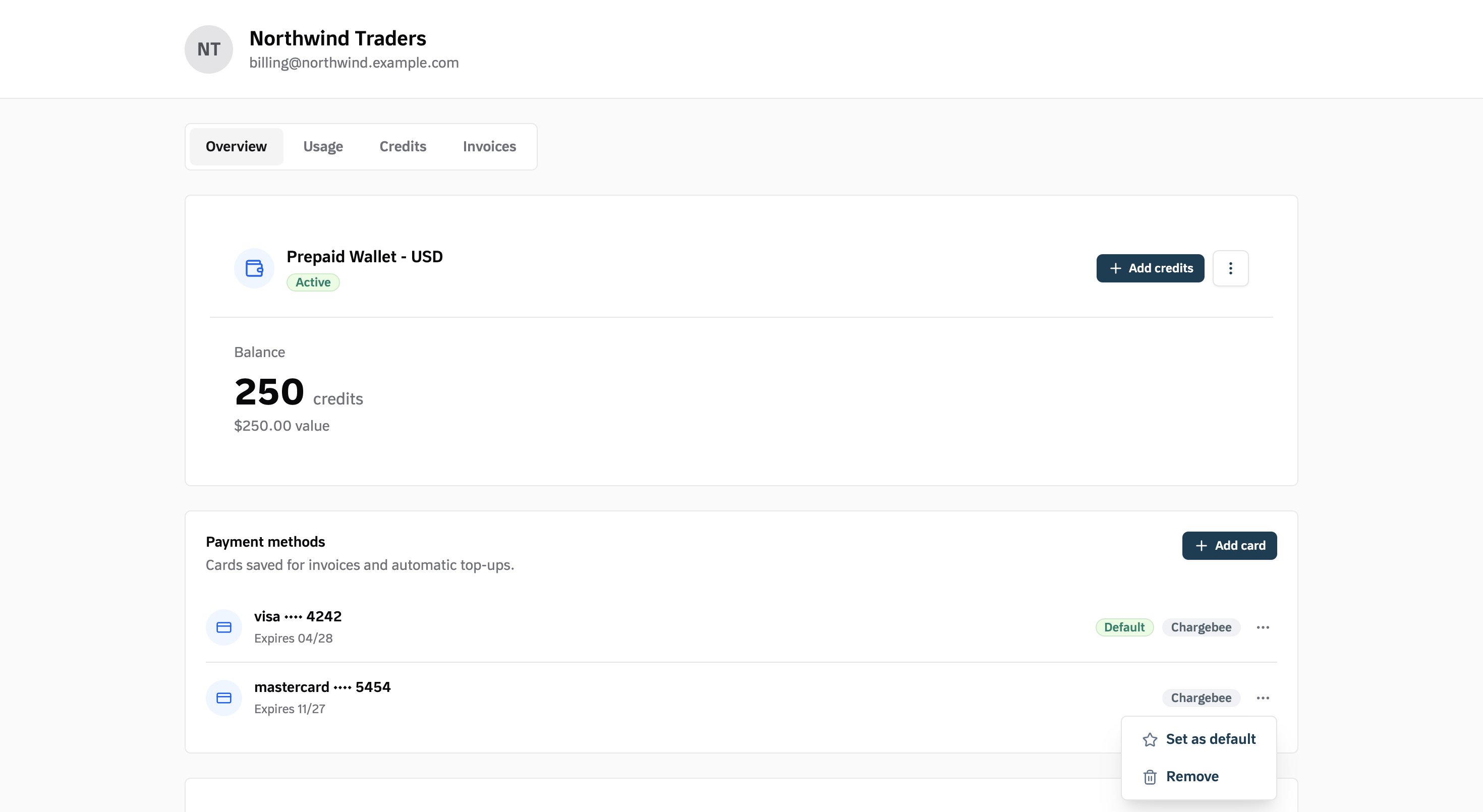
The landing section when it is first in the tab order (the default configuration opens on Usage; reorder sections through the configuration). It answers three questions in one screen: what the balance is, how it gets paid, and what the customer is signed up to.- Wallet balance with credits, monetary value, and Add credits and Pay now actions
- Payment methods listing saved cards, with Add card, Set as default and Remove
- Subscriptions showing plan name, status, current period and next billing date
Usage
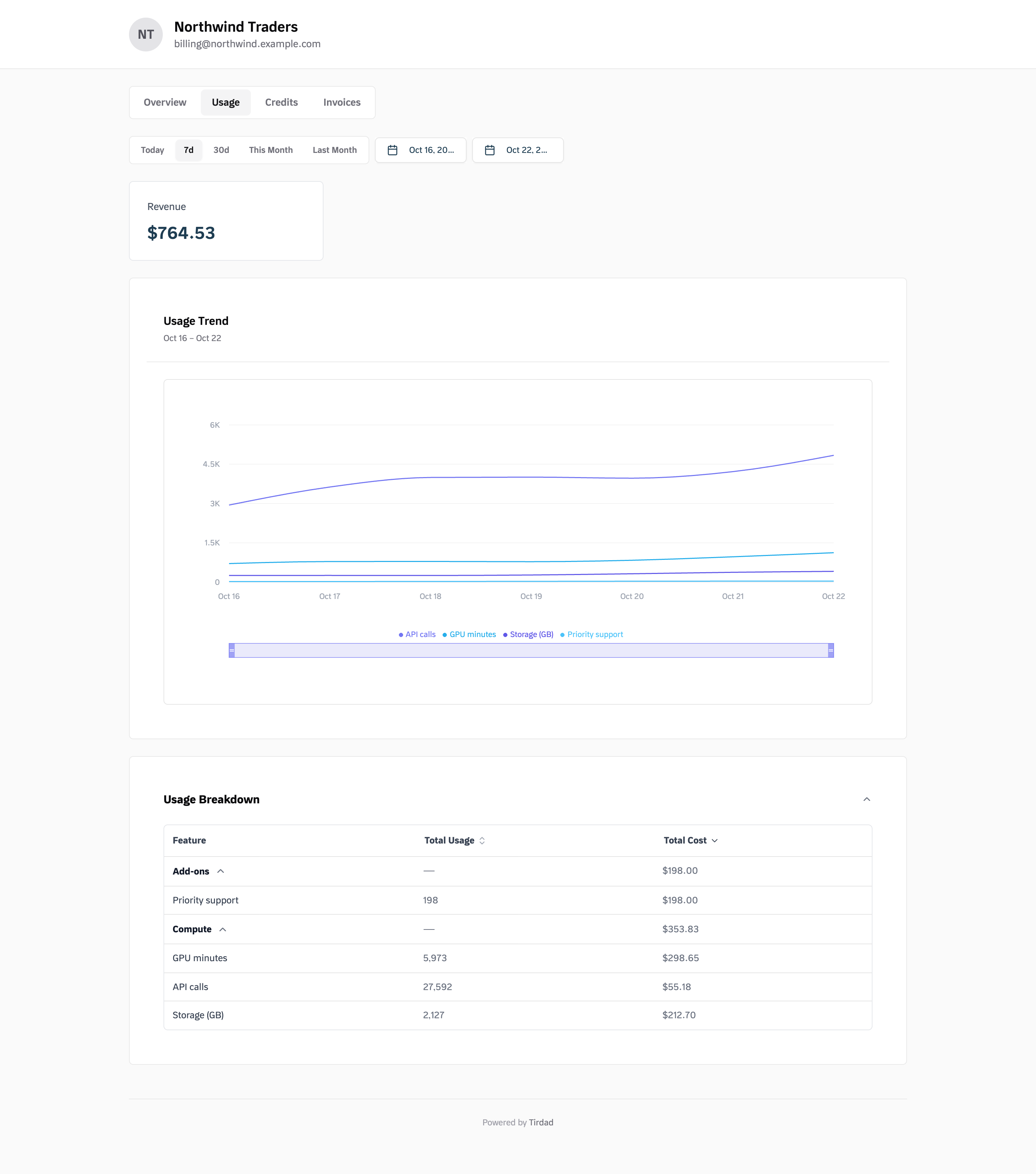
Feature-level consumption and cost over a date range. When features are assigned to groups, the usage breakdown is grouped accordingly.- Account summary with balance, amount due and next billing date
- Metric cards for revenue and any custom analytics metrics
- Usage trend chart, with a date preset selector and optional custom range
- Usage breakdown table of feature, total usage, events and total cost
- Current usage for the in-progress billing period
Credits
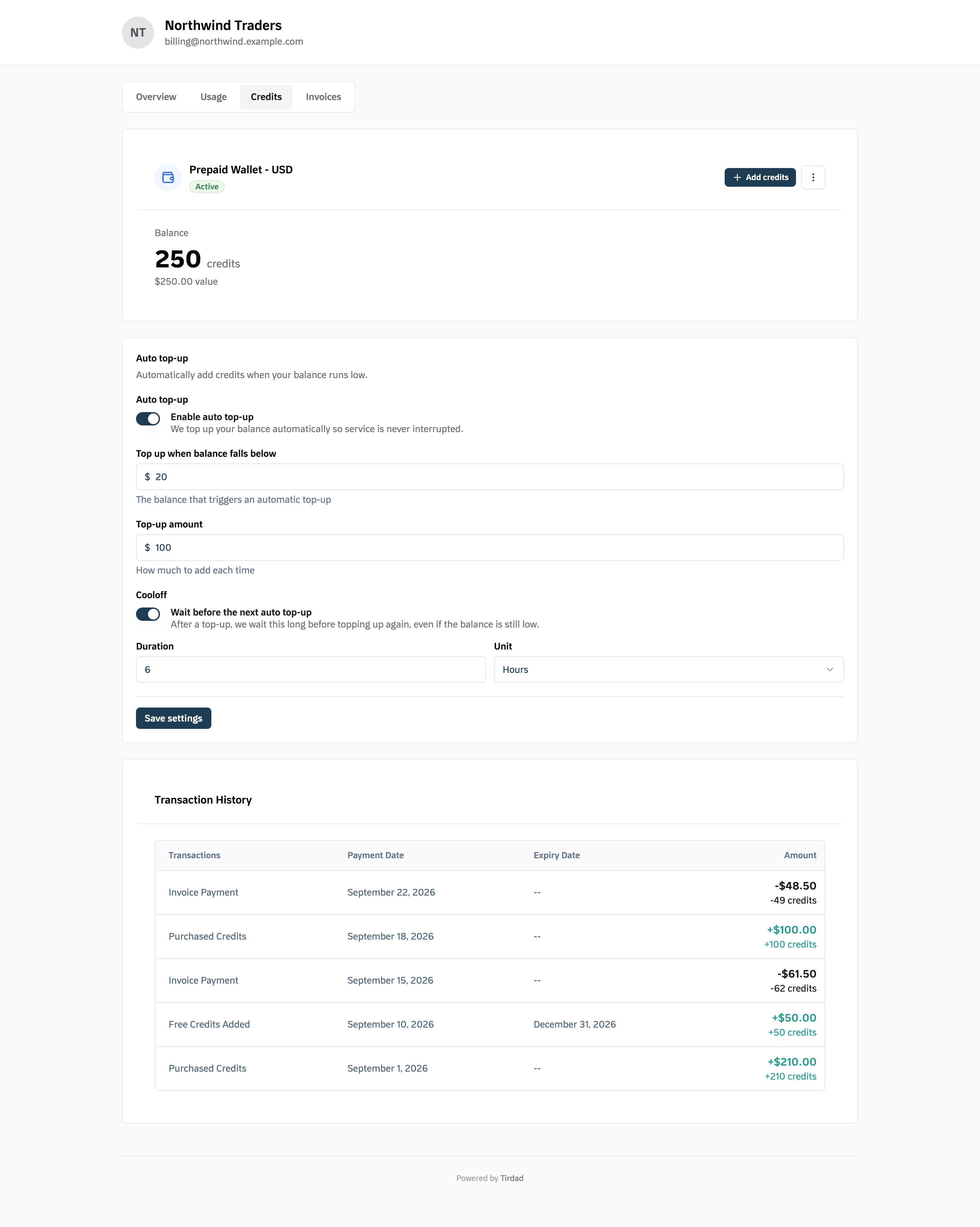
The prepaid wallet in full.- Wallet balance in credits and monetary value, with the wallet status
- Auto top-up summary and settings
- Transaction history listing each credit and debit with date, expiry, priority and amount
Invoices
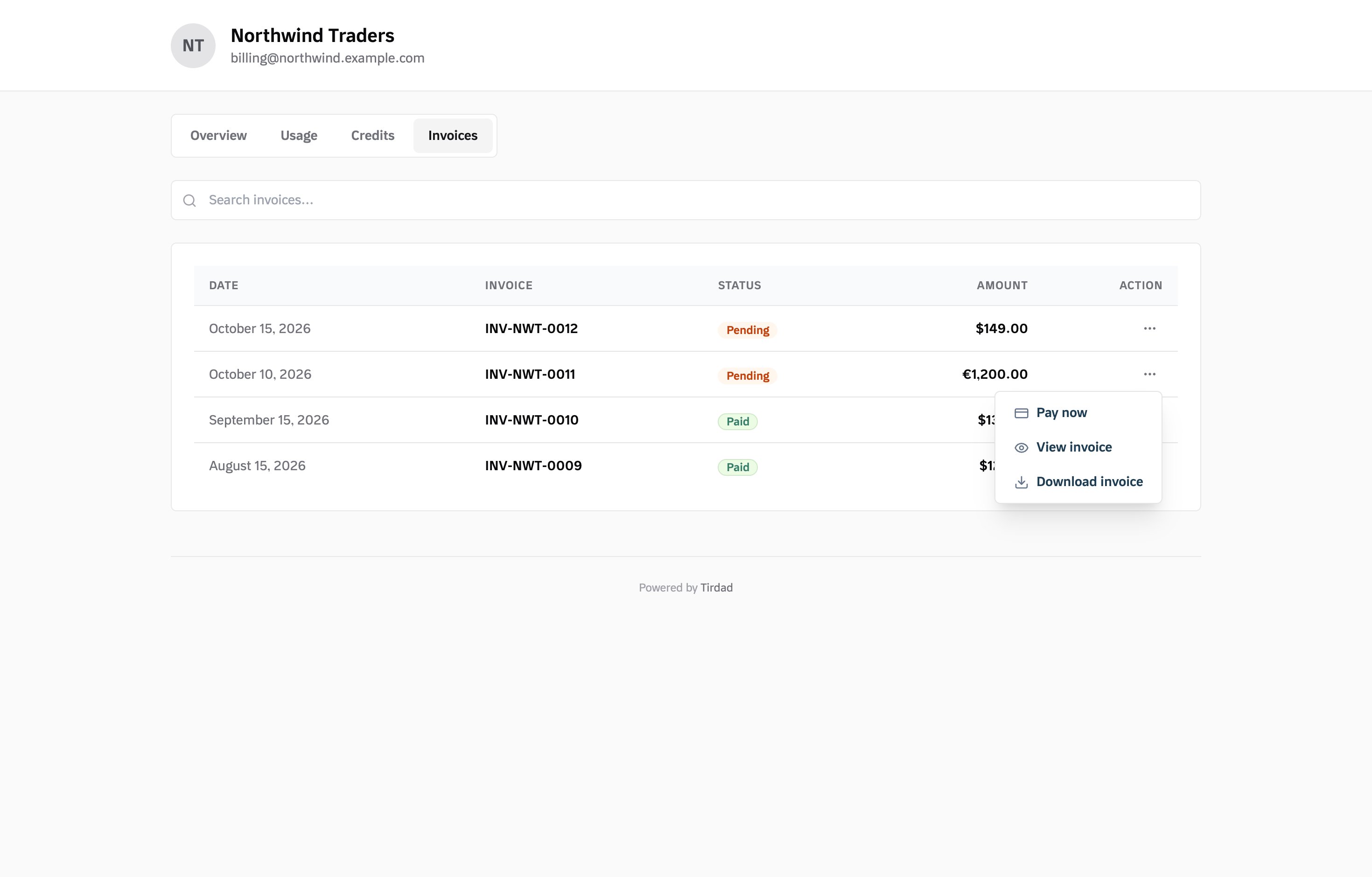
Every invoice raised against the customer.- Invoice table with date, invoice number, status, amount and row actions
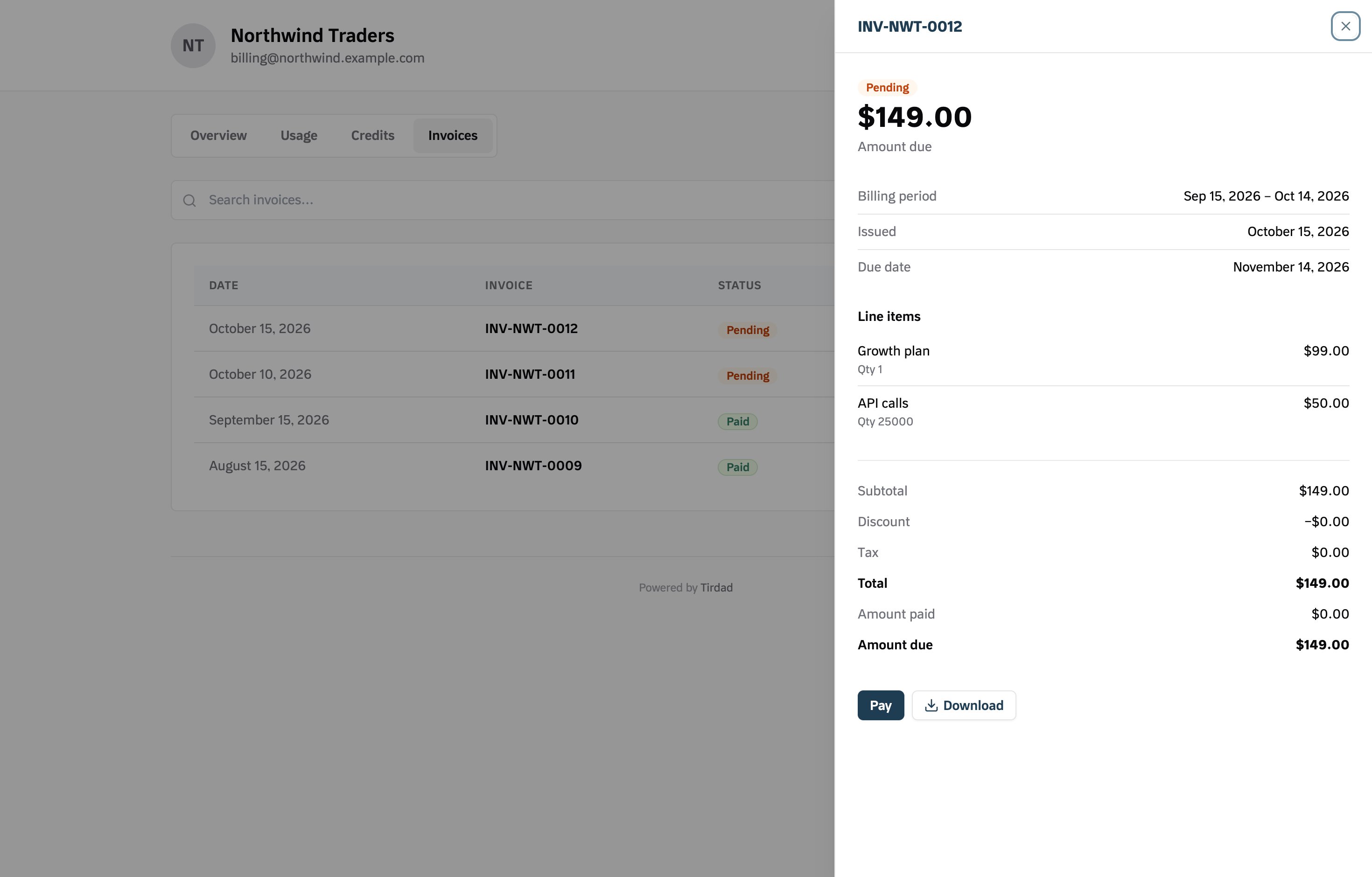
- Detail drawer showing amount due, billing period, issue and due dates, line items, subtotal, discount, tax and total
- Download as PDF, available once an invoice is finalized
- Pay now, shown when the invoice is awaiting payment and a provider is connected
Security model
Related resources
Portal payments
Invoice payment, top-ups, auto top-up and saved cards
Portal configuration
Control which sections appear and how the portal looks
Portal API reference
Every endpoint under /v1/customer/portal
Wallet top-ups
How wallet top-ups work outside the portal
Auto top-up
Threshold-based automatic top-ups
Checkout sessions
The checkout session model the portal builds on